Debugging an external Package: VR Tracking State
Today, I ran into a very weird issue while working on my VR Project where the player camera wouldn’t move or rotate with the VR headset as expected. Firstly, the player camera wouldn’t move regardless of how far I move the headset and secondly, the camera would only rotate slightly towards the opposite direction that I rotated the camera along the y axis (it didn’t rotate at all along the x and z axis). Also, my camera would always go straight to the floor as if the Character Controller collider stopped working.
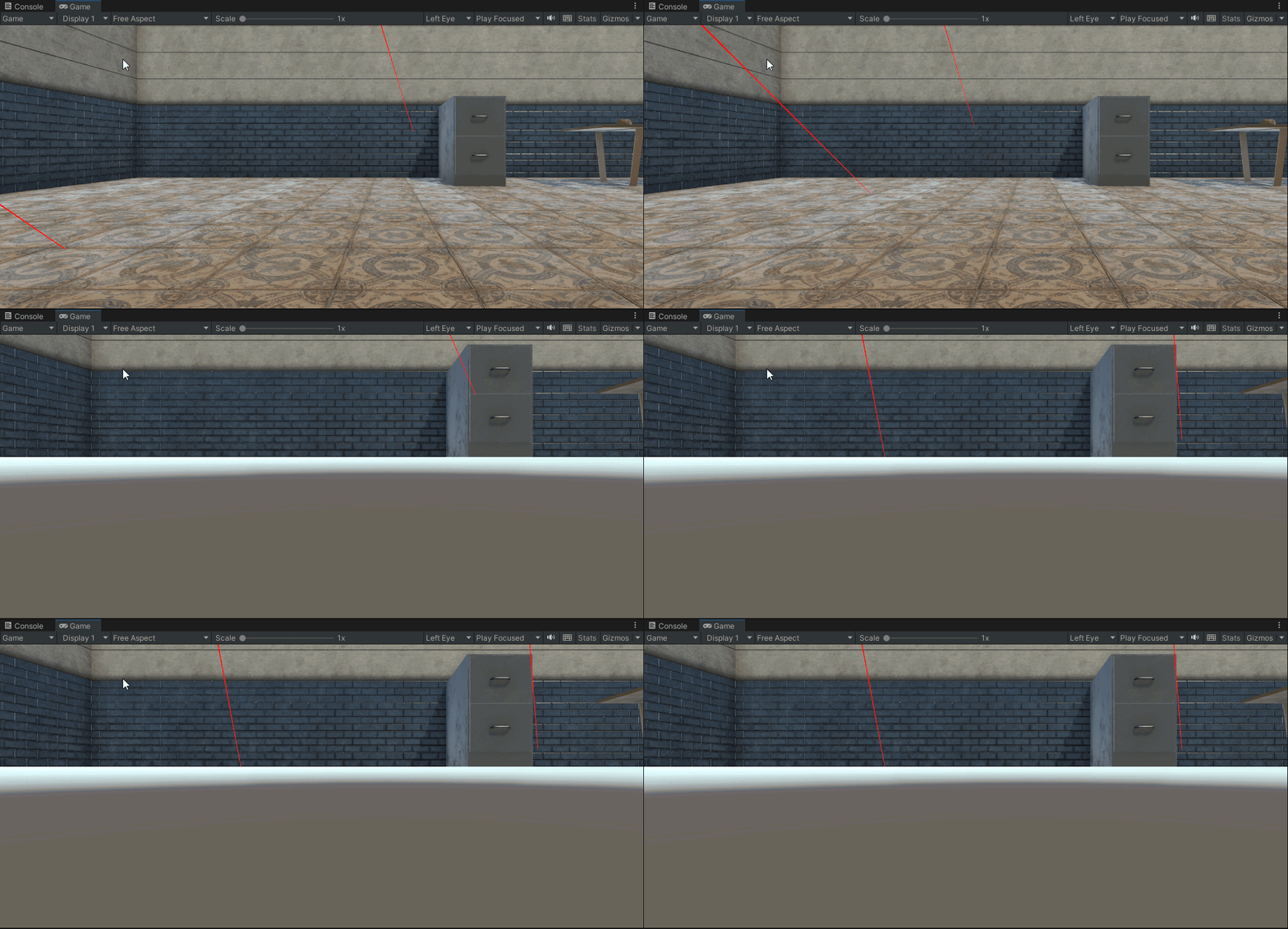
It's Impossible to see it from the gif, but in this gif I'm shaking my head left and right the entire time and as you can see, the camera doesn't turn.
If you run into this issue or an issue similar to this, chances are you VR Headset isn’t sending Tracking State data to Unity properly.
The Band Aid Solution
The band aid solution is to ignore tracking state entirely by going to the Camera’s Tracked Pose Driver component and setting ignoreTrackingState to true. This way, the driver will simply ignore whatever tracking input it’s getting from the VR headset.
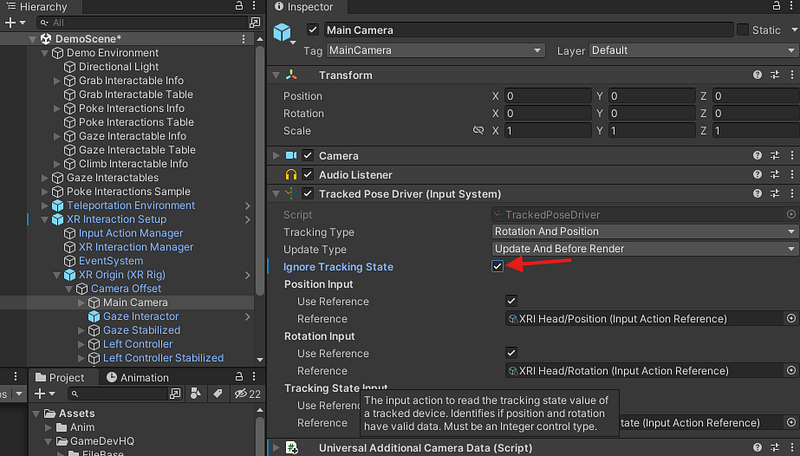
This of course, doesn’t actually solve the real problem and as such, I wasn’t satisfied with this solution. Doing this does indeed fix the bug at the surface, and you’ll be able to continue development of your project, but Unity themselves explicitly recommend users that they keep this box unchecked. The reason is because your player might have their headset settings set a certain way, and checking this box will ignore the Tracking configurations that users set for themselves. Obviously, you don’t really want to ignore a player’s wishes, so I wanted to make sure I knew how to fix this if it came up again.
Long story short, I decided to report a bug to Unity on their forums as I believe the issue has to do with an underlying package that I can’t control myself. If you are interested to follow the status of the bug, feel free to go here:
https://discussions.unity.com/t/unity-xr-tracking-state-bug-with-meta-quest-3/1614027
My Process for Debugging this Issue
When I got this issue, it was pretty tricky to describe. As such I didn’t know how to google the bug. There were no Error messages on the console so I couldn’t put a name to the bug here. That said, I did know that the problem had to do with the camera, because it was the camera that wasn’t moving or rotating correctly.
I first looked at the Character Controller since that handles the movement and rotation of the character generally, but nothing I adjusted there fixed the problem. Then I checked the camera itself and started fiddling with the settings there and found the perpetrator:
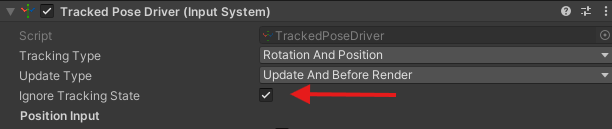
As I already mentioned above, this is only a bandaid solution. This ignores the tracking settings that your player has on their VR headset device entirely and forces both positional and rotational data to be used in-game. Obviously, you shouldn’t be doing this; you want your players to fully control their experience, so I dug deeper.
The Tracked Pose Driver component has a method called ReadTrackingState(). This method is the root problem here, and I’ll explain why I came to that conclusion briefly. If you want more details on my findings, you can go to the forum post I linked above.
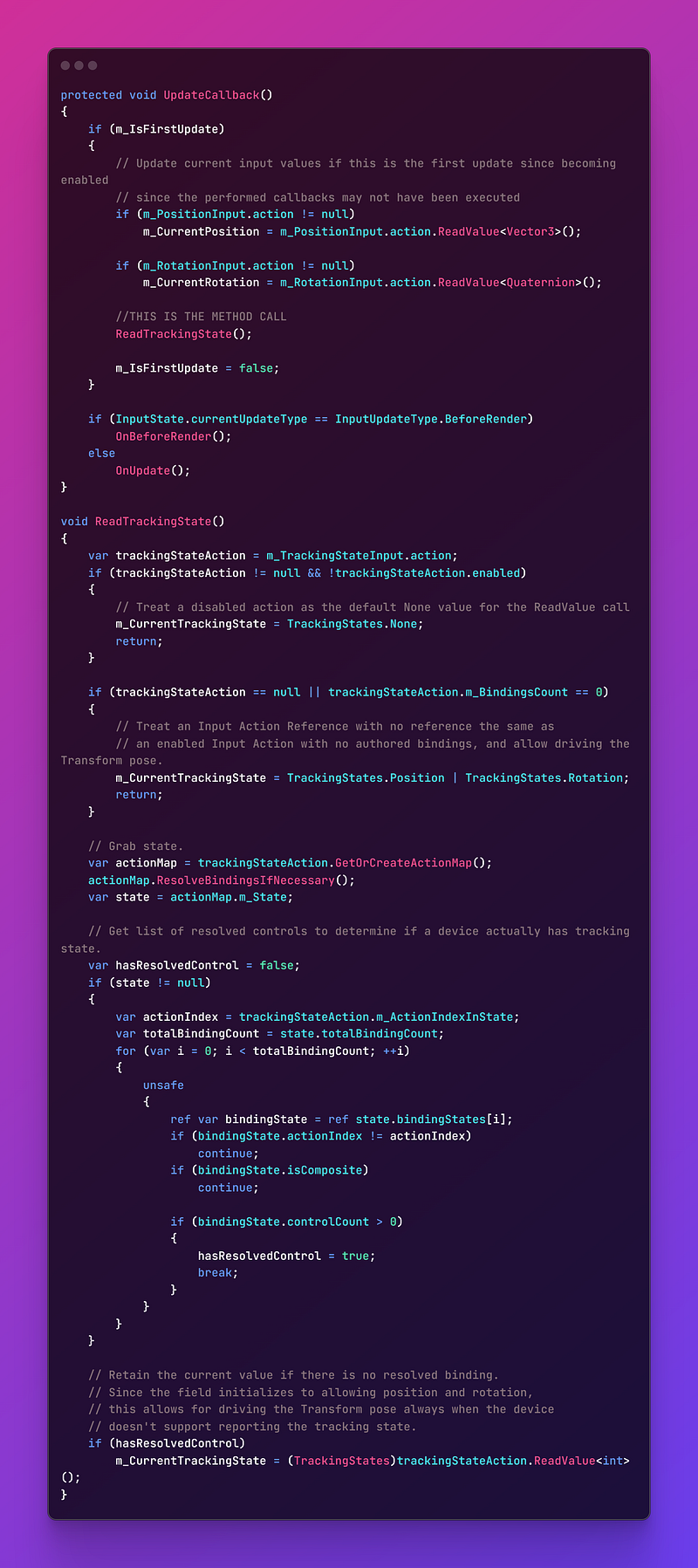
It turns out that you can set a breakpoint on this script to see exactly what is happening. I did that very thing and found the line that breaks the Tracking State:
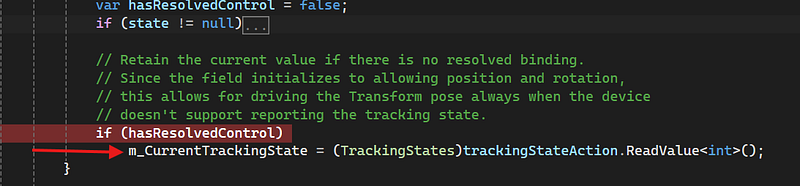 When this line of code runs, the value of
 m_CurrentTrackingState gets changed from Position | Rotation to None. This should never happen because the Meta Quest 3 device doesn’t even allow the user to turn off Tracking entirely. The most you can do is turn off positional Tracking.
I did some more digging and found that Unity has an Input Debug window that let’s you see Unity input being tracked in real-time while in play mode.
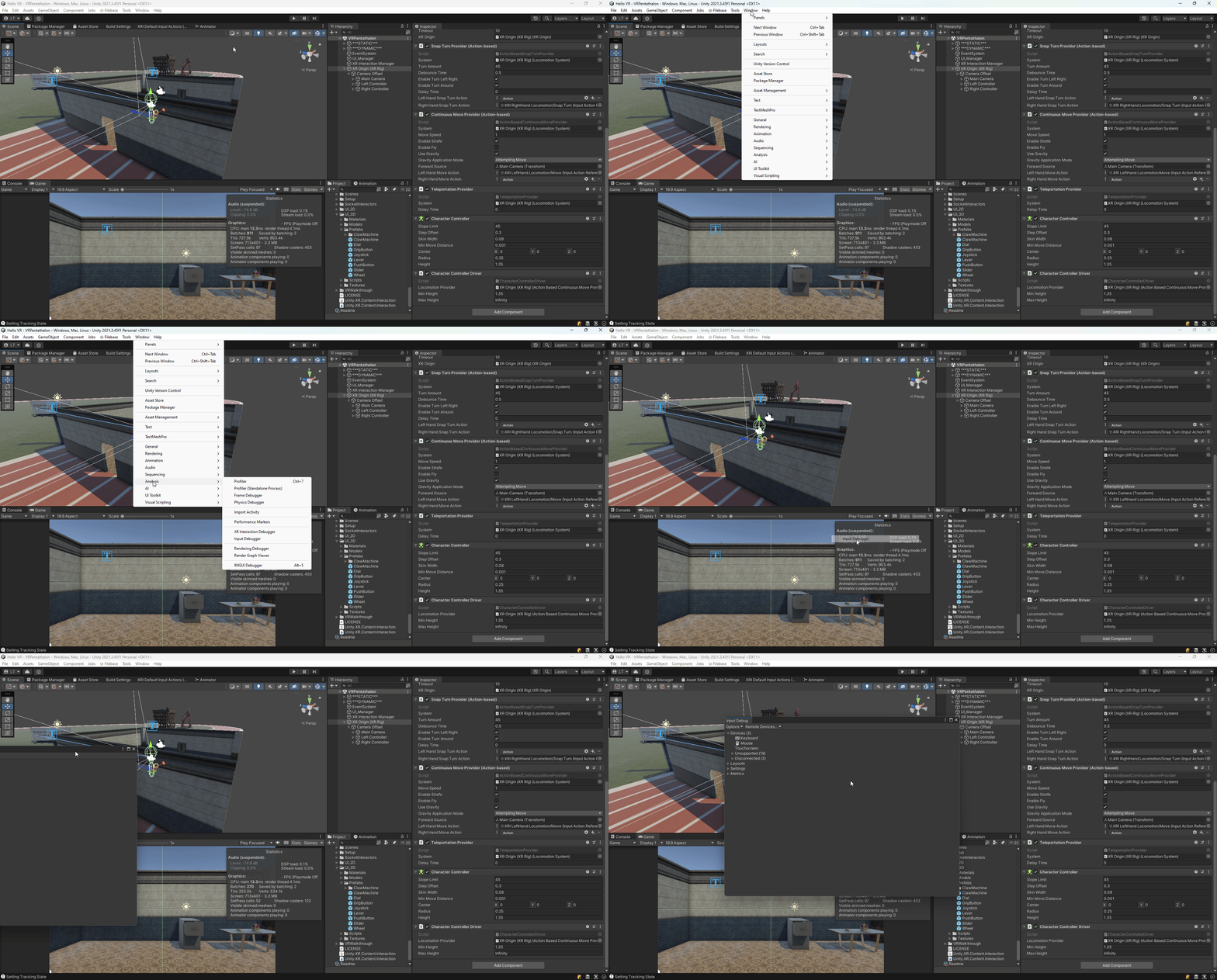
You can also get a debug window for the VR device itself to get all of its current values directly from the device using the XR Interaction Debugger: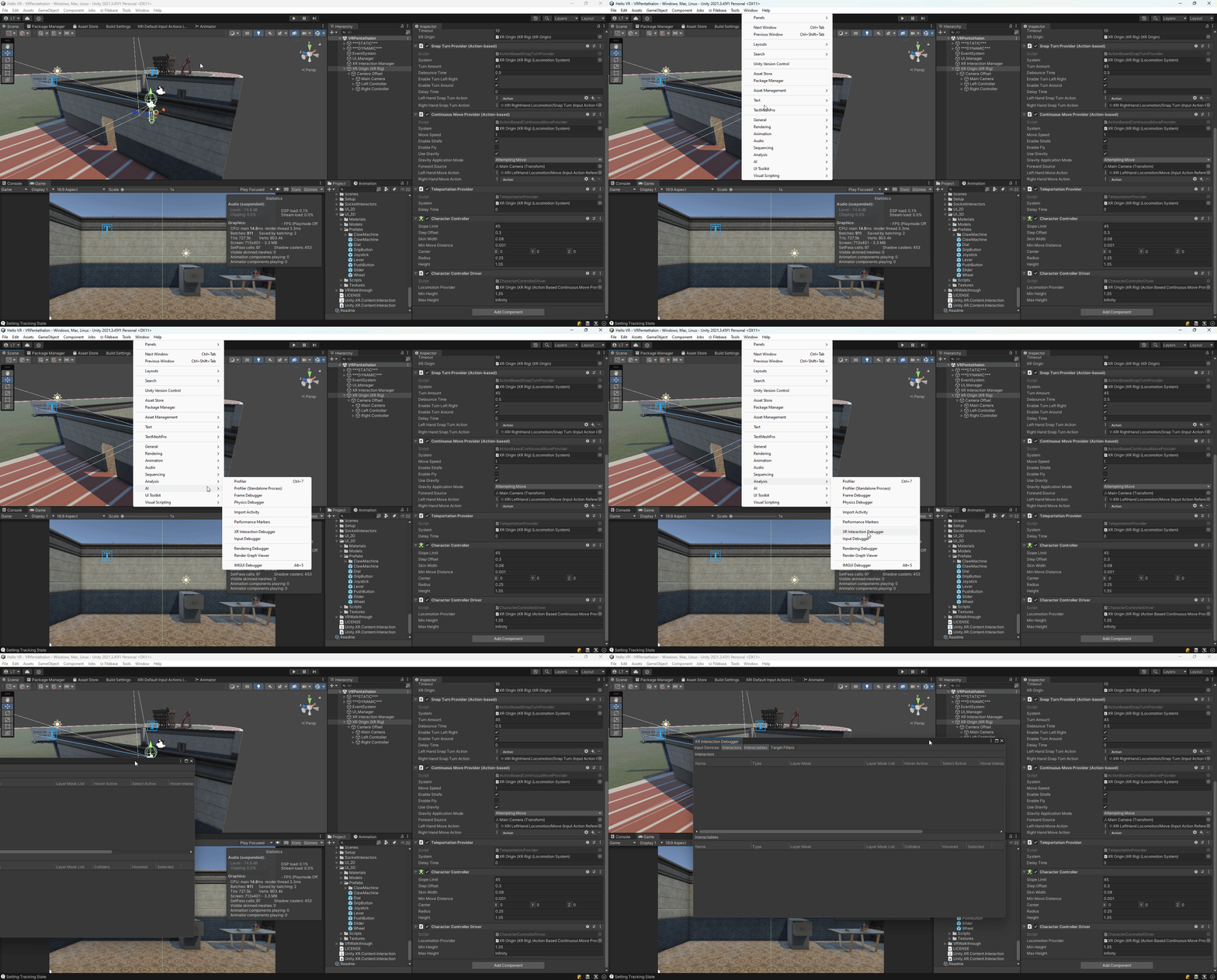
The long story short is that Unity’s Input System is not receiving Tracking Data Input properly from the Meta Quest 3 as depicted in the following image:
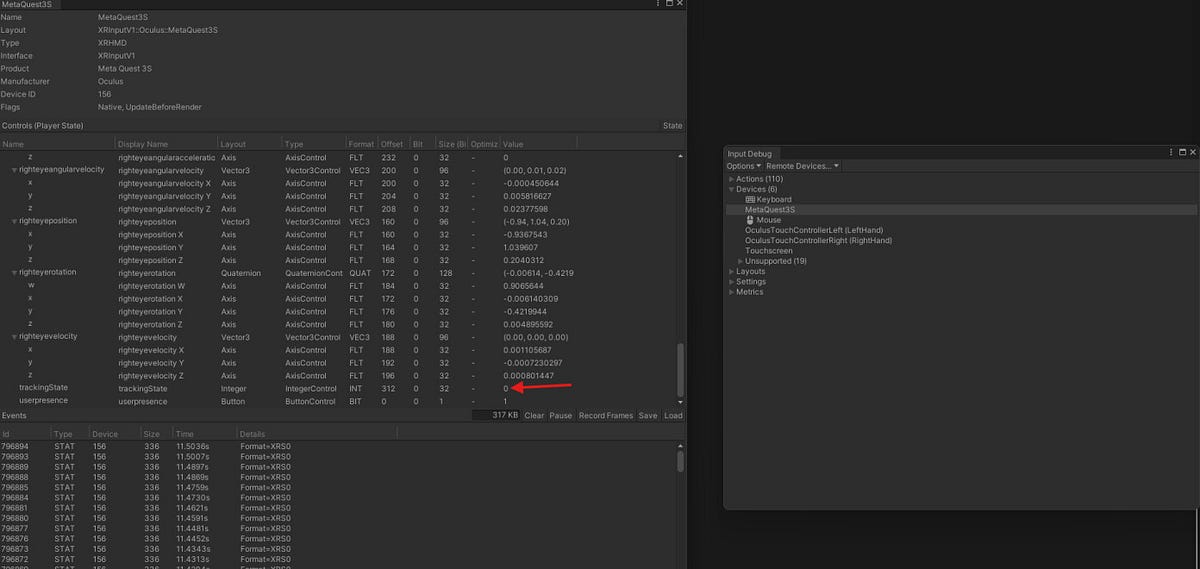
This value should never be 0.
But the XR Interaction Debugger does properly get Tracking Data from the device:
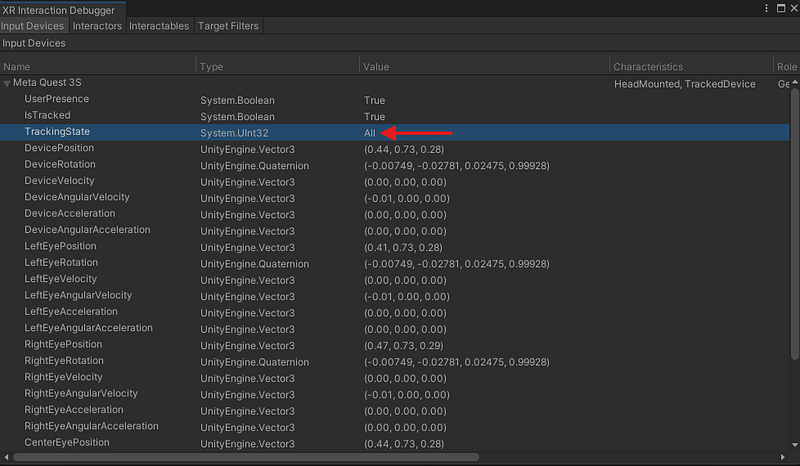
This leaves me to believe that the problem is most likely the input system since it’s not consistent with the actual VR headset Tracking values. As such, I concluded that there wasn’t more that I could do on my end and decided to report the bug instead to Unity.
Important lessons
I was able to dig deep into this problem because I was willing to read through code as well as documentation. Some links to the docs that lead me to my findings are below:
Meta Quest 3 Tracking documentation
Debugging
- https://docs.unity3d.com/Packages/com.unity.inputsystem@1.7/manual/Debugging.html
- https://docs.unity3d.com/Packages/com.unity.xr.interaction.toolkit@2.5/manual/debugger-window.html
Conclusion
It’s important to be willing to dig deep into problems you run into, because you will wound up learning a lot more about how the different systems in your tech stack work. Because of this problem I had, I learned a lot about how Tracking works with the Meta Quest device as well as how it’s used in Unity. Don’t always be satisfied with band aid solutions.